
15 Tips to Prolong Your Laptop Battery Life
Laptop Battery
10) Close applications when not in use
Close applications that are not in use. This will help save battery power and also free up memory on your laptop. You should close all of the programs that you are not using and turn off any unneeded features, such as background updates. Even if you think it is necessary for an app or program to run in the background, it might be worth turning off for a few minutes so you can get a few extra minutes of battery life.
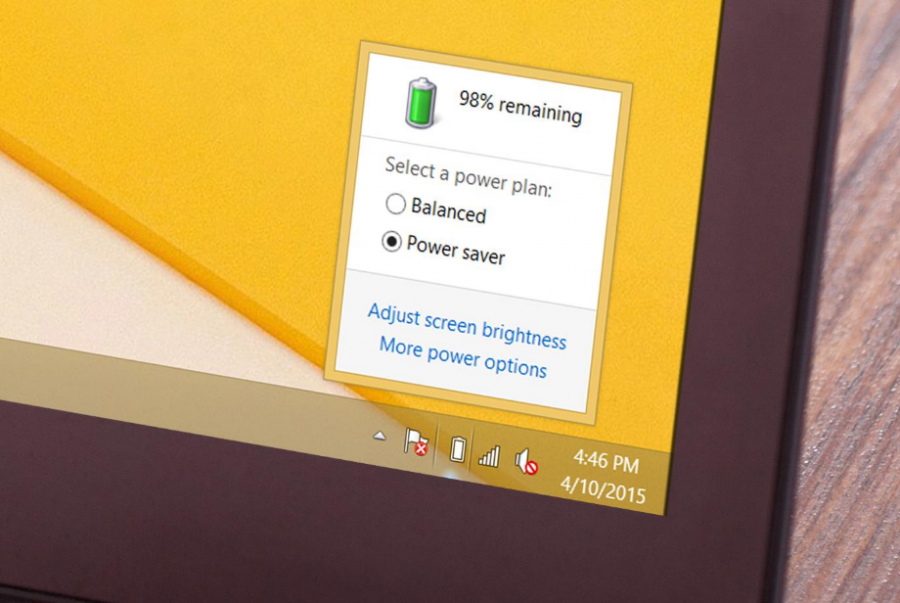
11) Don't use battery saver mode all the time
Don't use battery saver mode all the time. When you're not using your laptop, turn off battery saver mode and let the laptop charge. If you're going to be using your laptop for a short time, give it 20-30 minutes after fully charging for a full charge before turning on battery saver mode. Also, make sure that your computer is not set to hibernate when idle or sleep when idle. Instead of hibernating, shut down the computer when you are done using it. This will prolong its life because it won't needlessly run programs in the background while inactive.
12) Calibrate your laptop battery
The first and most important thing you can do to prolong your battery life is calibrate it. This simple process will help the battery operate at its peak performance, which can make a world of difference in your day-to-day usage. You'll need to find out what the calibration date is for your particular laptop battery, but all you have to do is run it completely down until it dies.
Once this happens, plug the laptop in and allow it charge up completely before unplugging. Now, repeat that process two more times on separate days before using your laptop again. The third time you use your laptop with the calibration done, you'll notice that the battery lasts much longer than usual - sometimes twice as long!
13) Get a battery health check
If your laptop battery is not lasting as long as it should, the first step is getting a battery health check. This will tell you if your battery has any problems and how much time you can expect it to last. If you find that the problem with your battery is a software issue, there are plenty of steps you can take in order to prolong its life. Otherwise, replacing your battery may be necessary.
14) Update your laptop's BIOS
If your laptop is running out of battery power quickly, you might want to update its BIOS. This process should not take more than 5 minutes and can improve battery life by up to 20%. All you need is the right software, a USB flash drive and the instructions for updating your laptop's BIOS.
First, download the latest version of your laptop's BIOS from the manufacturer's website. The newest version of BIOS will have all the updates that are currently available for your laptop model. Next, turn off your computer, remove any external devices connected and then restart it by pressing F2 when prompted or until you get a text prompt as shown in Figure 1.
15) Use your laptop regularly
My laptop has been a vital asset to me for many years. It has allowed me to keep in touch with my family and friends, do my schoolwork and more. However, as an avid user of the device, I have noticed that the battery life is not what it used to be.
Read more info "15 Tips to Prolong Your Laptop Battery Life" on the next page :
Editor :Techno Guide
